

FaceTime is the default video calling app on Apple devices – iPhone, iPad, Mac, and more. And, with software updates, the app is getting more robust and equipped with more features to compete with the likes of Zoom and Teams. Recently, FaceTime on Apple devices got screen sharing capability when you need to share important presentations, sheets or documents during work or personal calls. Below is a detailed guide on how to share your screen on FaceTime on iPhone, iPad, and Mac. We also show you how to stop screen sharing and take over from someone else. Check it out.
How to Share Screen on FaceTime on iPhone, iPad
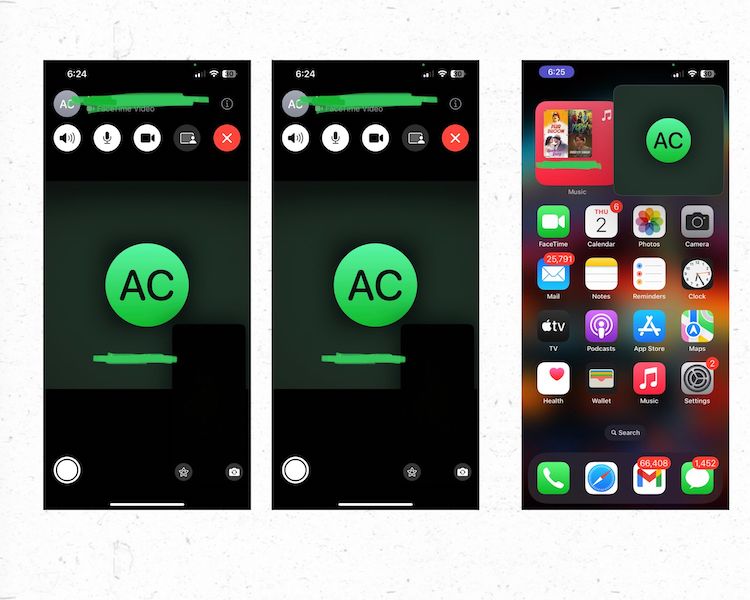
To share your screen during FaceTime call on iPhone or iPad, you should follow these simple steps.
- Start a FaceTime call with the person you want to share your screen with.
- During a call, on the FaceTime screen, click the Share Content icon next to the video.
- Now, click on Share My Screen. A 3-second timer will inform you that the screen will be shared shortly.
- Now, just use your device as it is. The screen will be visible to the recipient.
How to Screen Share on FaceTime on Mac
on MacOS Monterey 12 and above
If you’re on the latest versions of macOS (12 and above), try these steps:
- Start a FaceTime call with the person you want to share your screen with.
- Open the app you want to share during your call.
- From the menu bar at the top, click on the FaceTime logo button.
- Click the Screen Share button , and do one of the following:
- Share an app window: Select a window, move the pointer over the app you want to share, then click Share this window.
- Share the whole screen: Select the screen, move the pointer over any part of the screen, then click Share this screen.
How to screen share with someone else
When someone else is sharing the screen during a FaceTime call, you can take over and present your screen instead. To do this, here are the steps:
- Join the call you want to take.
- Tap the Share Content button in the FaceTime call.
- Tap Share my screen
- Tap Replace Existing
You should now have access to Screen Sharing.
How to turn off screen sharing on FaceTime
on iPhone and iPad
To stop sharing your screen on iPhone and iPad, follow these simple steps:
- During a call, click the Share Content button at the top.
The other person on the call will no longer be able to see your screen.
on mac
To stop sharing your screen on FaceTime on Mac, simply click the FaceTime button in the menu bar, and then tap the Stop Sharing button.
questions to ask
1. How to fix FaceTime audio and video problems?
If you are experiencing issues with audio and video in your FaceTime app, try these steps to help resolve it:
- Check your Internet. A weak or unstable Internet connection can cause problems with FaceTime audio and video, as these Internet calls require a stable connection to function properly. Try switching closer to a stable Wi-Fi network, or if you’re using mobile data, shift to an area with better reception.
- Check your device settings: Make sure your device’s camera and microphone aren’t blocked, and that FaceTime has permission to access them. These permissions can be checked in the Settings or Preferences app on your device.
- FaceTime or restart your device: Try quitting and restarting FaceTime or your Apple device to attempt a fix. This may help eliminate temporary errors and clear your data to retry launching the app.
- Update your device. Make sure that your device and the FaceTime app on it are regularly updated to the latest versions. Avoiding this may lead to some problems and incompatibilities in the future.
- Contact Apple Support: If none of these solutions work, the best way to get a solution is to contact Apple Support via chat, email, or call. They are usually quick with solutions and can either guide you through or take the device in their hands and fix it themselves.
2. How to fix Facetime screen sharing problems?
If you are experiencing issues with screen sharing in your FaceTime app, follow these steps to help resolve it:
- Test your Internet. Once again, test your Internet connection before making any other fixes. If it’s shaky, try moving closer to a stable Wi-Fi connection. Or, if you’re on mobile data, try moving somewhere that has better reception.
- Check FaceTime settings: If this doesn’t fix the problem, try to see if the FaceTime app has proper screen sharing access. To do this, go to Settings > FaceTime and make sure the Screen Sharing option is turned on.
- Update your devices: Make sure both devices have the latest version of iOS or macOS installed. To check for updates, go to Settings > General > Software Update.
- Contact Support: As always, if nothing works, go to Apple Support and describe your problem to them in detail. Chances are they’ll either be able to guide you towards a solution or gain access and fix the problem themselves.
3. Can I share my video and screen together on FaceTime?
Yes, it is possible to share both your video and screen simultaneously on FaceTime. Here are the steps to do it:
- Start a FaceTime call with the person you want to share your screen with.
- Tap on the Share content option during the call.
- Click Start Broadcast to share your screen with other people on the call.
- Now to re-enable your video sharing as well, tap the Video button in a FaceTime call, which will now be disabled, and toggle it on.
These steps will help you share your screen as well as live video feed on FaceTime call.


