

The MacBook is a great machine. It allows you to work and create amazing things for your job or business. But there are times when you need to resell or give away your old Mac for a new Mac. And, before you do that, it’s important to back up all your data and factory reset the computer to protect your data and make it convenient for the next user to set it up the way they want it. Below is a handy step-by-step guide on how to factory reset your MacBook Air, Pro, or Mac PC on different macOS versions and what to do before the reset.
What to do before factory resetting a MacBook Air, Pro, or Mac PC?
It is important to note that resetting your MacBook will erase All data, and eventually software, from the hard drive, so please back up any and all important files before proceeding with the reset. That said, we have put together a step-by-step guide on how to perform this factory reset, and precautions to follow before doing so.
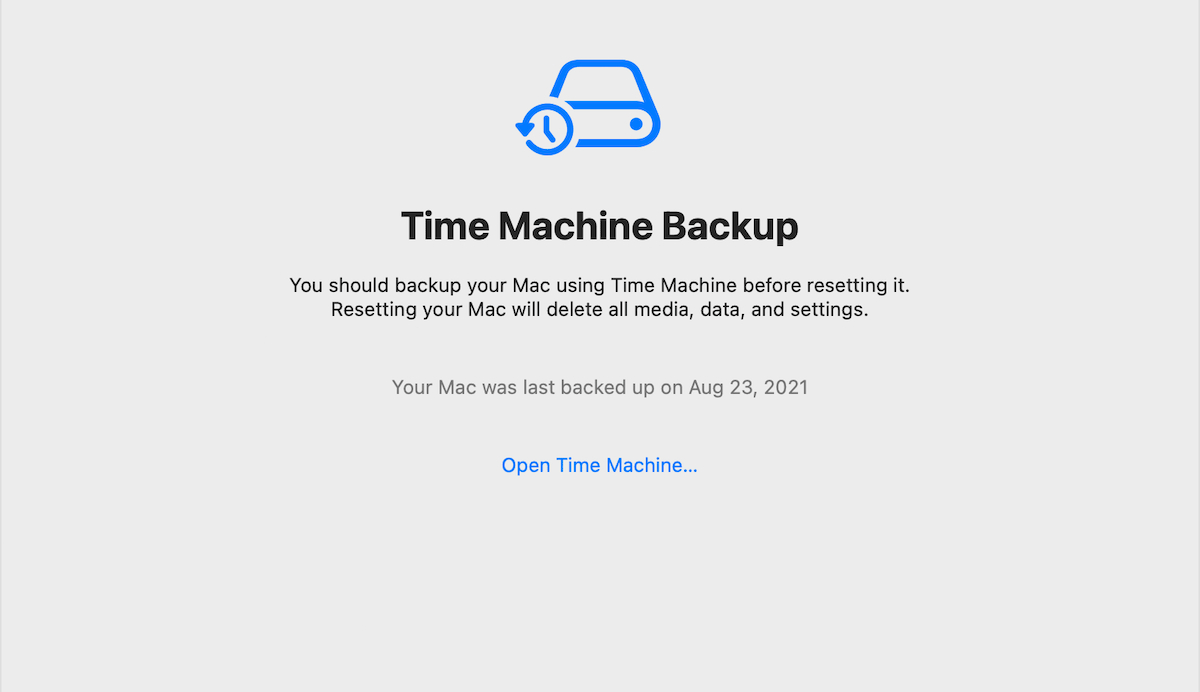
Before you factory reset your MacBook, here are some things you should keep in mind to avoid losing your data or giving up access to some of your sensitive information.
- Backup: The first and foremost step is to take a backup of all your data. Be sure to check your files and data, including photos, documents, music, and videos, Back up everything that’s useful to carry over to your next machine. You can do this either by transferring your files to an external hard drive (or pen drive if the data files are not very large) or by using a cloud-based storage service like iCloud, Google Drive or OneDrive. Cloud services usually work best if you’re already on a plan.
- Sign out of your accounts: When we resell or donate old laptops, we leave behind a lot of fingerprints. Therefore, make sure you logout from all your social media, work, messaging, gaming and file-sharing apps or websites on the computer. While most of this should be signed out by resetting the data on your browser, be sure to check if any sign-in information still remains on the hard drive. This will ensure that your personal data is not accessible to anyone else after the reset.
- Disable Find My. Find My is Apple’s GPS-based location tracking service that allows you to know the exact locations of your Apple devices. If it is enabled on your MacBook, be sure to disable it before resetting it. You can do this by going to System Preferences, clicking Apple ID, and then selecting iCloud. From there, uncheck the box next to Find My Mac. And, you’re done.
- Create a bootable USB drive (optional): If you want to reinstall macOS after a factory reset on a MacBook, it is recommended to create a bootable drive with a copy of the macOS installation file.
How to reset MacBook Air, Pro and Mac PC
Now that you’ve backed up your important data and signed out of accounts and apps, it’s time to get to work. Here’s a step-by-step guide on how to factory reset your MacBook running different versions of macOS.
macOS Ventura
- Scroll to the corner of your MacBook screen and click on the Apple logo. Now, choose System Settings
- Click General from the sidebar in the Settings menu
- Click on Transfer or Reset
- Choose Erase all content and settings. An erase assistant will pop up on your screen for further assistance.
- Enter your administrator username and password to authenticate the reset.
- Click Continue to proceed without creating a backup (if you have already followed the above steps)
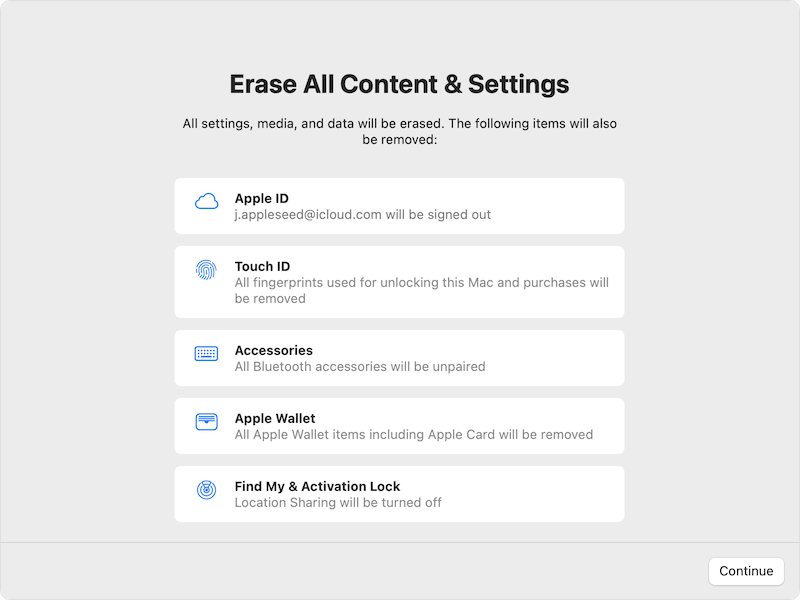
- A new screen displays the items that will be removed during the reset. Verify all elements such as Apple ID, Touch ID, Accessories, Apple Wallet and Find My. click continue
- Finally, click on Erase all content and settings to proceed
- The Mac will restart, indicating the reset is in progress.
If you want to resell or give away your machine, don’t go through the setup process. Instead, long press the power button to shut down the Mac.
macOS Monterey
The process for macOS Monterey is slightly different from macOS Ventura.
- Scroll to the corner of your MacBook screen and click on the Apple logo. Now, choose system Preferences
- Click on Erase All Content and Settings directly from the System Preferences menu. An erase assistant will pop up on your screen for further assistance.
- Enter your administrator username and password to authenticate the reset.
- Click Continue to proceed without creating a backup (if you have already followed the above steps)
- A new screen displays the items that will be removed during the reset. Verify all elements such as Apple ID, Touch ID, Accessories, Apple Wallet and Find My. click continue
- Finally, click on Erase all content and settings to proceed
- The Mac will restart, indicating the reset is in progress.
Once again, don’t go through the setup process if you want to resell your Mac. Simply, long press the power button and put it away.
macOS Big Sur or older
Unfortunately, the reset process is a bit longer on Mac computers running macOS Big Sur and older. While you can just upgrade to macOS Monterey and above using the steps above, this guide is for those who can’t. We will skip the reset process assuming that you have already backed up the data.
- Power off your Mac. While holding down Option, Command, P and R to switch to Recovery Mode, click the Power button to turn it back on.
- In Recovery Mode, click on Disk Utility from the menu
- click continue
- Select Macintosh HD and click Erase. Leave the format as the default.
- Voila, your MacBook has been reset.
- If you want to reinstall macOS as discussed earlier, go to Recovery Mode again and click Reinstall macOS. Steps will be taken on the screen.


image credit: apple
How to reset NVRAM for Intel MacBook Air, MacBook Pro and Mac PC
If you are facing issues with your Intel MacBook and Mac desktop, resetting NVRAM can act as a solution. NVRAM or non-volatile random-access memory is a type of memory used in Mac computers to store certain system settings, such as speaker volume, startup disk selection, time zone, and recent kernel panic information. NVRAM is a small amount of memory that retains its contents when the computer is turned off.
- First off, shut down your Mac. While turning it on, press and hold the following keys immediately after your Mac starts up: Option, Command, P and R.
- Keep holding the keys down for about 20 seconds until you hear the startup sound for the second time.
- Release the keys and allow your Mac to power on normally.
Your NVRAM is now reset.
general question
Who Should Factory Reset a MacBook or Mac Computer?
Ideally, only the MacBook owner should factory reset his personal computer to avoid the loss of any important data during the process. As far as whether it should be done, a MacBook factory reset is for those who want to erase all data and settings on the computer, either to start fresh or to prepare it for resale or donation.


