

Unused apps can often act as a burden to the internal storage on iPhones. It not only takes up space but also affects the performance of the device. So, if you have apps on your iPhone that you have stopped using, we advise you to get rid of them immediately. If you’re not sure what these unused apps are, don’t worry, we’ve got you covered. Below is a handy step-by-step guide on how to offload unused apps or permanently delete them from your iPhone and iCloud. Check it out.
how to delete apps on iphone
There are several ways to delete apps on iPhone. Let’s look at them one by one.
from home screen
The easiest way to uninstall apps from the iPhone is through the home screen itself. This way.
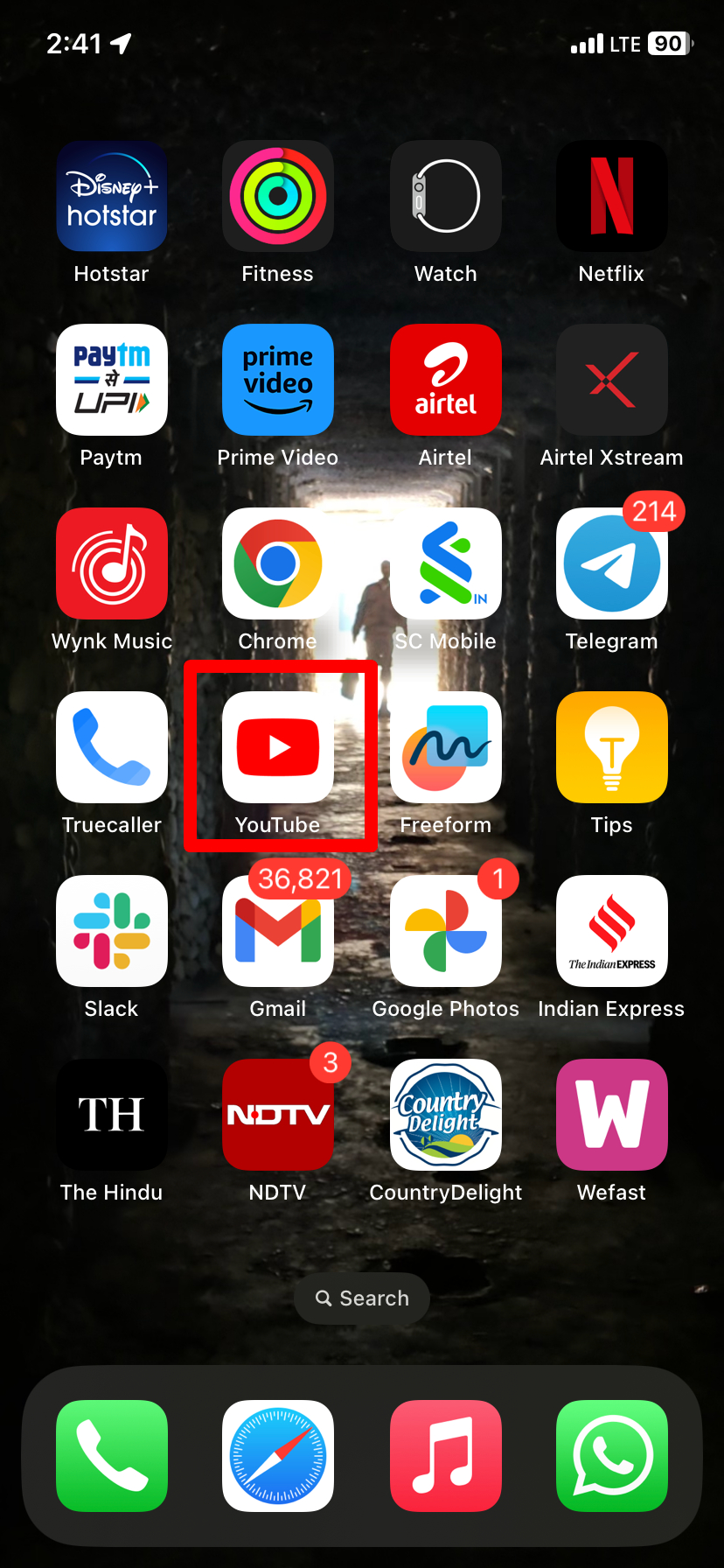
- First, find the application you want to uninstall on the Home screen or App Library
- Now press and hold the app icon until a menu appears

- Choose the option ‘Delete App’ or ‘Remove App’ and confirm the latter when prompted
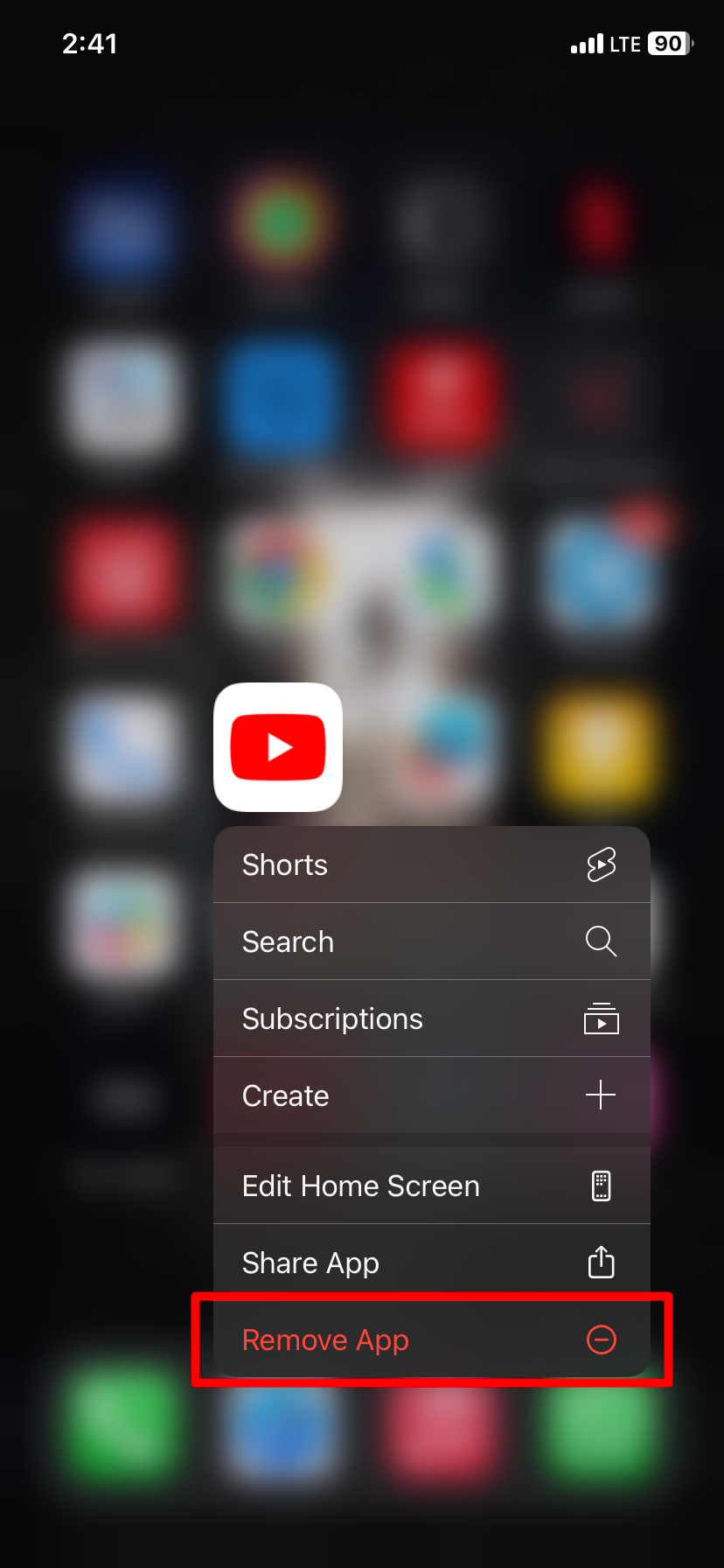
Once done, the app will be removed from your iPhone
from settings
Unwanted apps can also be deleted by going to the General section inside Settings on iOS. Here’s how to do it.
- Launch the ‘Settings’ app on your iPhone
- Next, scroll down a bit and tap on ‘General’
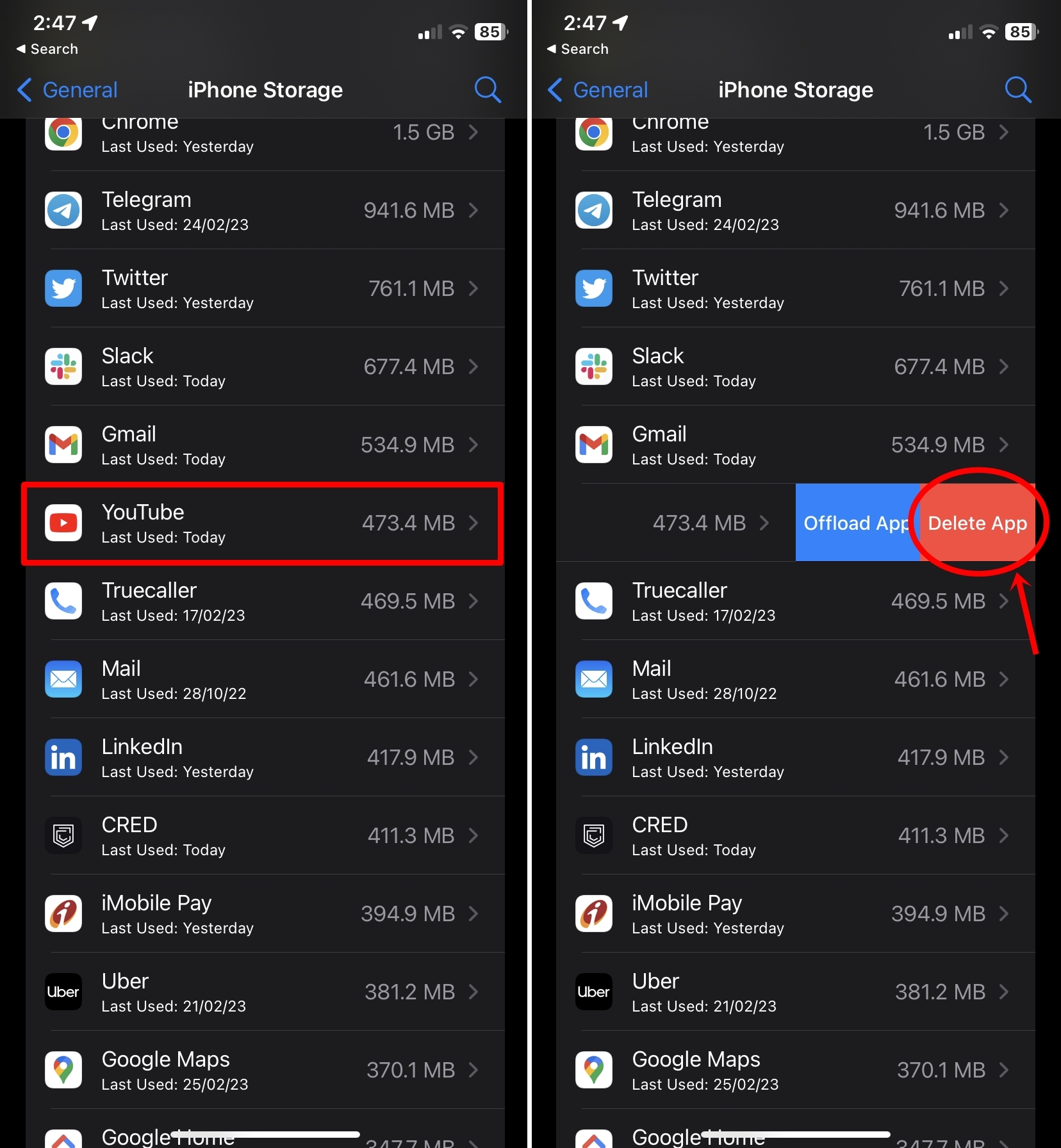
- From here choose ‘iPhone Storage’
- A list of all your installed applications will appear. Just tap or swipe left on the one you want to remove
- Now click on ‘delete app’ option and the app will be uninstalled

from itunes
This method requires you to access iTunes from PC or Mac. Also, make sure the same Apple ID is logged in on both the iPhone and iTunes. That said, the process to remove apps from iTunes is as follows.
- open itunes on your computer
- Next, go to the ‘Library’ section
- From here go to the ‘Apps’ menu and right-click on the app you want to uninstall from your iPhone
- the app will be moved to the trash
- To permanently delete the app, go to the Trash section and clear it from there as well
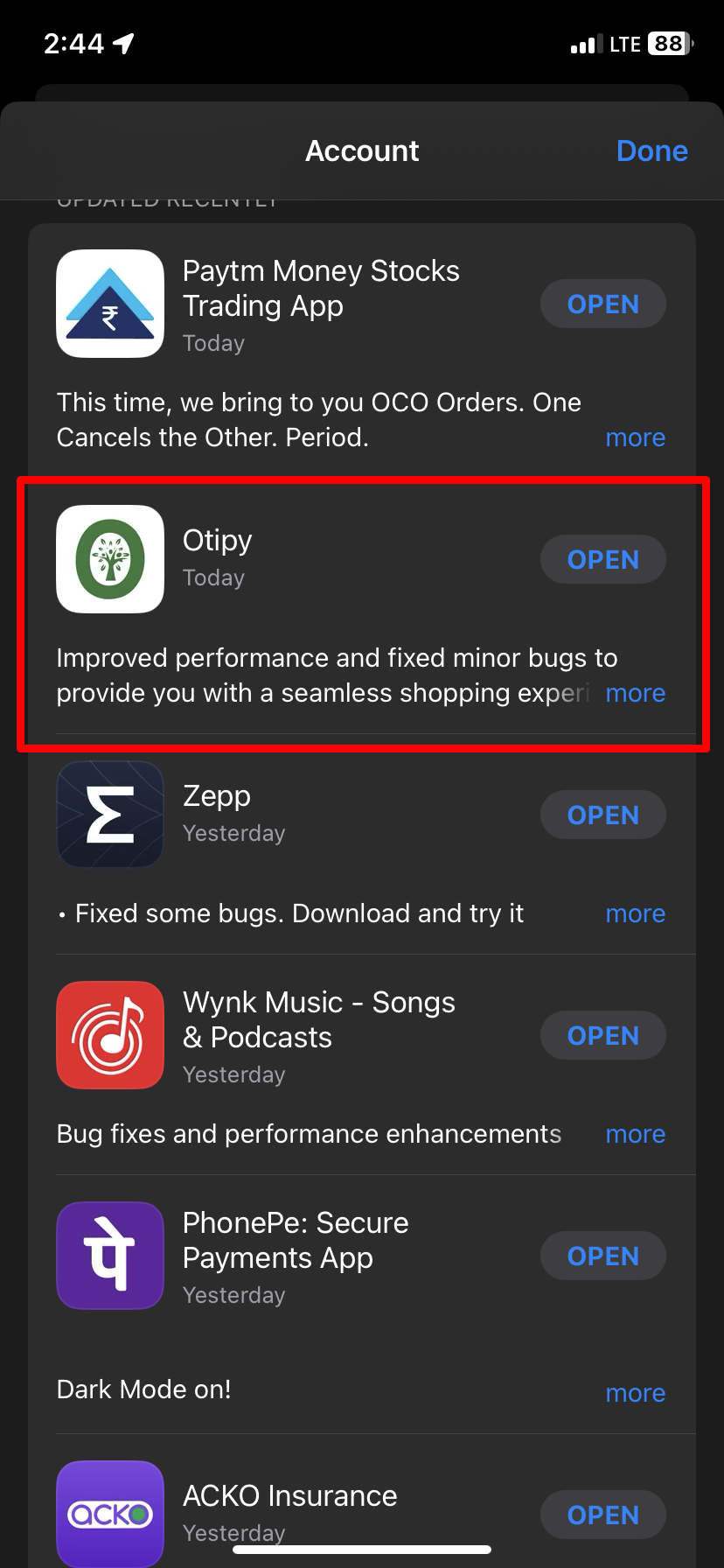
How do I delete apps on my App Store?
- Launch App Store on your iPhone
- Tap on the ‘Account’ icon on the top right corner
- Now scroll down until you find the app you want to remove
- Finally, to delete an app, swipe left until you see the text ‘Delete’
- Tap on it and the app will be removed from your iPhone

How to remove apps from iCloud
App backups can often take up a large chunk of iCloud storage. Here’s what you need to do to delete the backup data from the cloud.
- On your iPhone, open Settings
- Tap on your account/name at the top
- Next, select ‘iCloud’ and then ‘Manage Storage’
- Select ‘Backup’ option and from here you can browse all backed up data from apps
- Turn off the toggle for the app you want to get rid of and choose ‘Turn off and delete’ at the prompt that appears
How to delete preinstalled apps on iPhone

Removing unused and irrelevant pre-installed apps can be a great way to give your iPhone a breath of fresh air if you’re low on storage space. The process of removing pre-installed apps such as Apple Books, Podcasts, Compass, etc. is similar to removing any app from the home screen of an iPhone. Just press and hold on the app icon and tap on the ‘Remove App’ option to remove it.
If you want to reinstall those apps, you can do so by downloading them from the App Store.
how to delete unused apps on iphone
This is a very easy method. You can assign the system to identify unused apps and remove them from the iPhone. Here’s how it’s done:
- go to settings app
- Scroll down and select ‘General’
- Choose iPhone Storage
- Tap on the Enabled option next to ‘Offload unused apps’
It will automatically remove all the apps from your iPhone that have not been used for a long time to free up space. But, don’t worry, your documents and files will be kept safe. You can access them after you download the app again. Allows iPhone users to offload a particular unused app instead of all. Read on to know how this is done.
How to offload unused apps on iPhone

- Go to ‘Settings’ and select ‘General’
- Tap on ‘iPhone Storage’
- From the list of apps, choose the one you want to load

- On the next page, you will get the option of ‘Offload App’. tap on
- Confirm the prompt and the app will be offloaded from your iPhone
How to remove hidden apps on iPhone
If you can’t find the app on the Home screen, the app will be in the following places:
- App Library – On the home screen, swipe to the rightmost screen and search for an app via the search bar. From there tap and hold on the app to delete it.
- Adjustment – Settings contains a list of every application installed on your iPhone. To delete apps one by one, go to the ‘iPhone Storage’ section in Settings.
- app Store – Go to the ‘Updates’ section on the App Store and swipe left on the app you want to remove.
questions to ask
1) How to clear cache on iPhone
Apart from uninstalling apps, clearing the cache on your iPhone can also help you get back some precious storage space for new apps and media files. Check out our detailed article on how to clear app and browser cache on iPhone.
2) Why can’t I delete apps on my iPhone?
Some applications play an integral part for the iPhone to function properly and thus, they cannot be removed by the user. These include first-party apps like Phone, Messages, Camera, App Store, Safari, Settings, and more.
However, if you are facing issues deleting downloaded apps, try several troubleshooting methods like restarting your iPhone or clearing cloud data before uninstalling the app.
3) Does deleting apps on iCloud free up storage?
Yes, depending on the storage space taken up by an app, deleting apps’ backed-up data can actually free up storage on iCloud.
4) Why do deleted apps reappear on iPhone?
Deleted apps may reappear on your iPhone if automatic downloads from the App Store are left enabled. This setting can be turned off by going to the App Store settings.


