

Want to share or give your Wi-Fi access to others without revealing the password? There are several ways to do this through your smartphone. This way users can join the network without having to type in a password. If you’re wondering ‘how’, we’ve got you covered. Below is an easy step-by-step guide on how to share Wi-Fi password with others on Android mobile phone and iPhone. Check it out:
How to Share Wi-Fi Password from Android to Other Devices
Over the years, Google has added several methods for sharing WiFi passwords on Android devices. It allows users to easily connect their friends, families and co-workers’ devices to the WiFi network, especially when the password is long and complex. Here’s how Wi-Fi password sharing works on Android:
via QR code
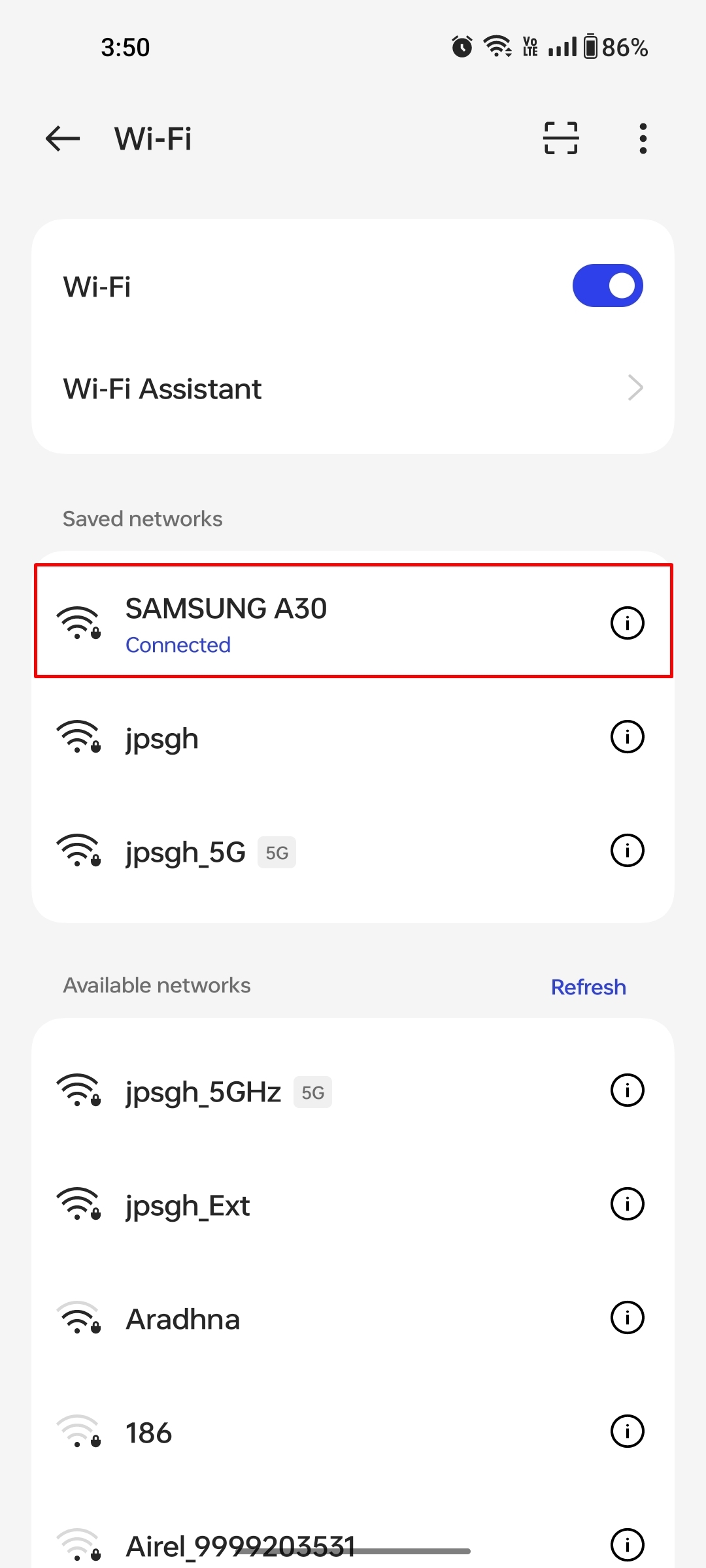
Most phones with the latest version of Android come with an option to share the WiFi password via a QR code present on the WiFi settings screen. But in order to use this method, users need to make sure that they are connected to WiFi. Otherwise, this QR code method will not work. It is explained here.
- Launch the ‘Settings’ app on your Android mobile phone
- Next, select the ‘WiFi’ section
- Tap on the WiFi network you are connected to

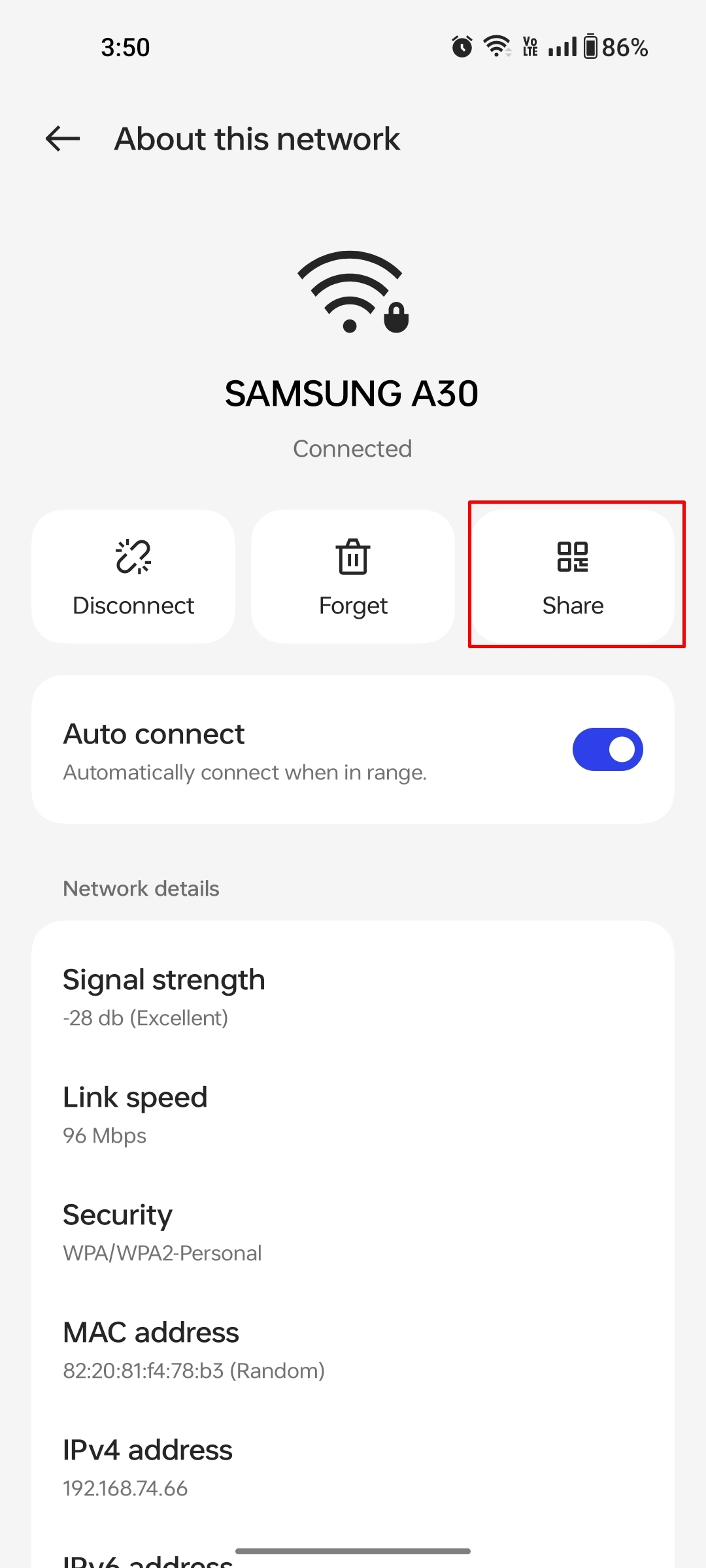
- Now, select the ‘Share’ button with the QR code icon. It may ask you to enter your phone’s lock screen password or verify via biometrics
- Once done, a QR code will appear
- Simply open Google Lens or any QR code scanner app on another device to scan the code
- Shortly after, the device will connect to WiFi

via nearby stock
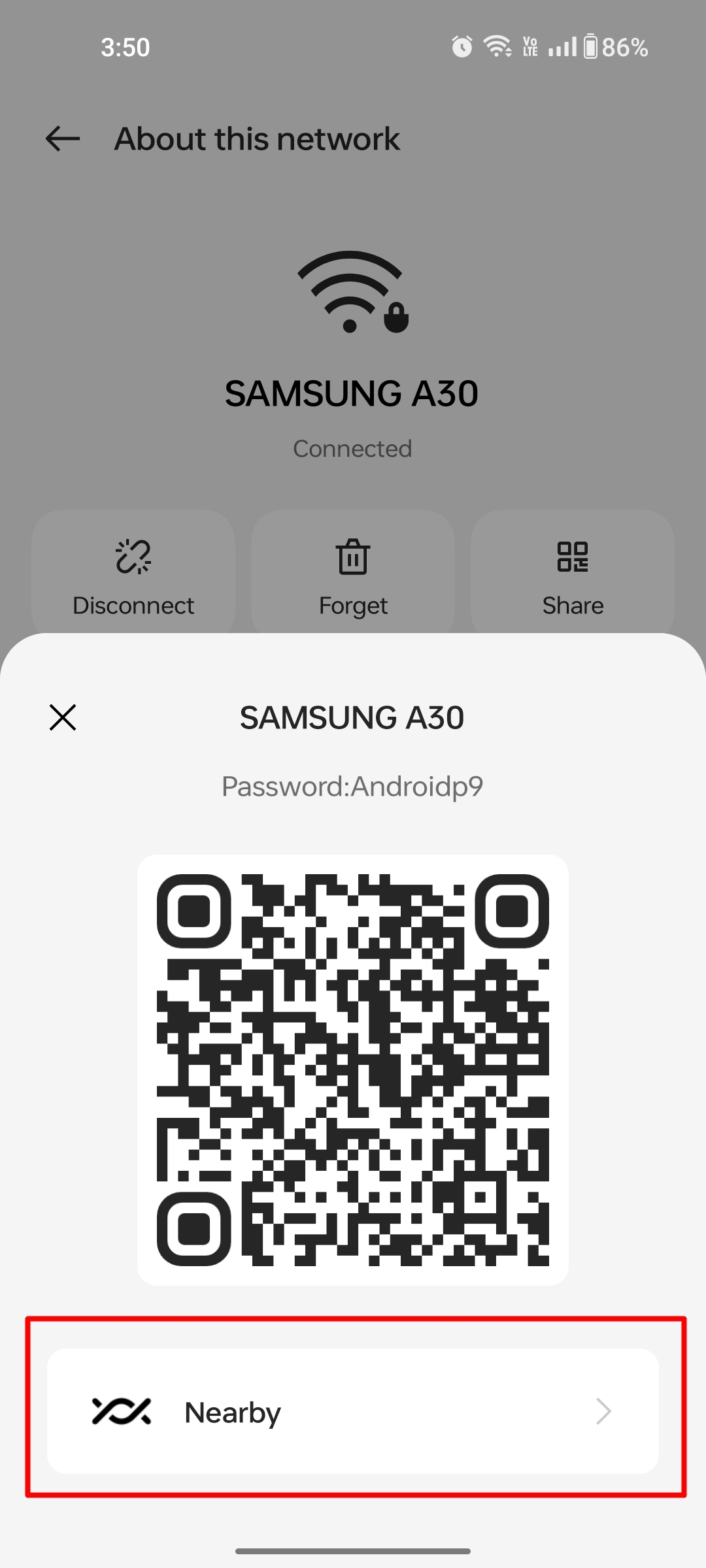
Nearby Share on Android is a way to quickly share all kinds of data, including media files, PDFs, and apps, with other Android devices without using the Internet. This feature can also be used to share WiFi passwords. This way:
- First open the WiFi Settings section on your phone.
- Tap on the WiFi network you are connected to
- From here, select the ‘Share’ button and authenticate by entering either your lock screen password or biometrics
- After this a QR code will appear with ‘Near’ option at the bottom
- Just select it and ask the other person to turn on Nearby Sharing on their device
- Bring both the devices close to each other and select the name of the device with which you want to share the WiFi password
- Once done, the password will be transferred to the other person’s mobile and will automatically connect to the respective WiFi network
how to share wifi password from android mobile phone to laptop
The above QR and Nearby sharing methods will only work on smartphones. If you’re a laptop user, here’s how you can share Wi-Fi passwords from connected Android devices:
- Like the methods mentioned above, go to Wi-Fi setting on your mobile and select the connected WiFi network
- Now select the ‘Share’ button and authenticate your biometrics to reach the next screen
- Once done, a popup will appear containing the password for your SSID
- Simply copy the password and share it with relevant people via chat message or directly communicate it
How to Share Wi-Fi Password from iPhone to Mac, iPad, iPod Touch, and More
Apple users can easily send WiFi passwords from their iPhones to their other Apple devices such as iPad, iPod Touch and Mac by signing in with their Apple ID. This way.
- First, make sure all devices are signed in to the same Apple ID
- Next, open the ‘Settings’ app on the receiving device and select ‘Wi-Fi’
- Tap on the network you want to connect
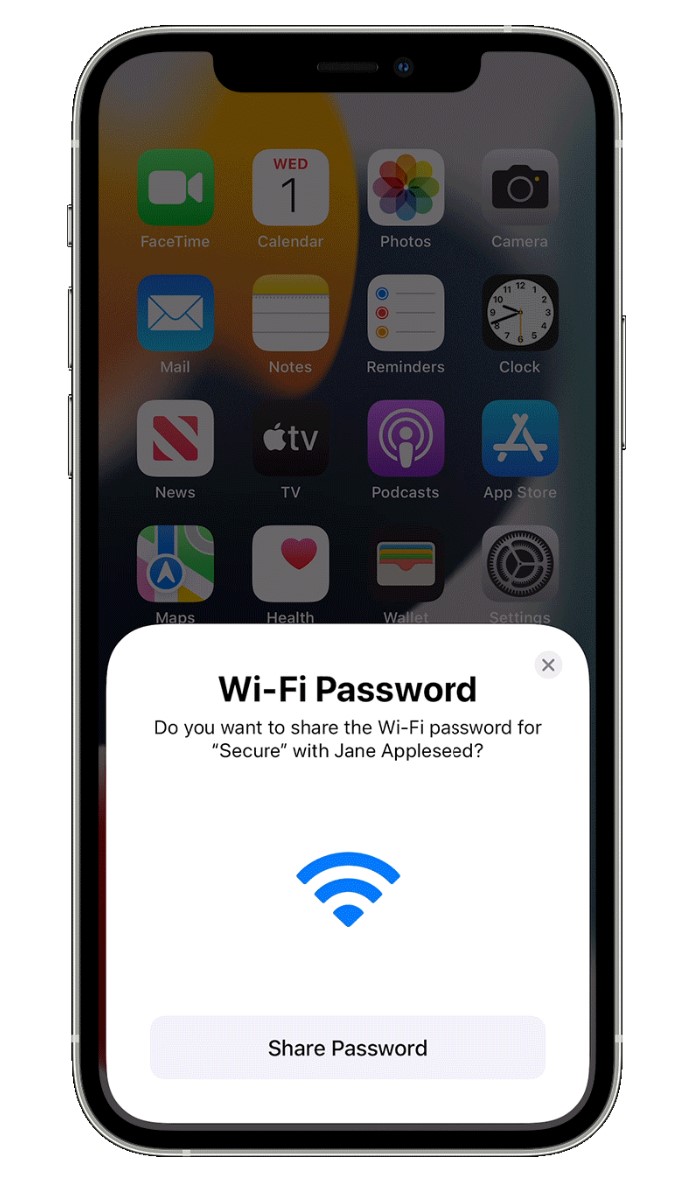
- Now grab the host device and you should see a pop-up asking you to share WiFi access
- Select the ‘Send Password’ button and the other device will be connected to the respective WiFi shortly.
But if you want to share WiFi password with a friend, here’s what you need to do:
- Make sure you have each other’s contact saved with an Apple ID in the email field
- Now open the ‘Wi-Fi’ section from Settings on your friend’s iPhone or iPad
- Select the WiFi network you want to connect to
- After this, a popup should appear on your device asking you to share the password. Tap on the ‘Share Password’ button and you are good to go
How to Share Wi-Fi Password with Android Users from iPhone
Since iOS and Android are two different operating systems, the methods mentioned above will not apply to Android phones when sharing passwords from iPhone. The workaround is to manually create a QR code that Android users can scan to connect to a WiFi network. The procedure is as follows:
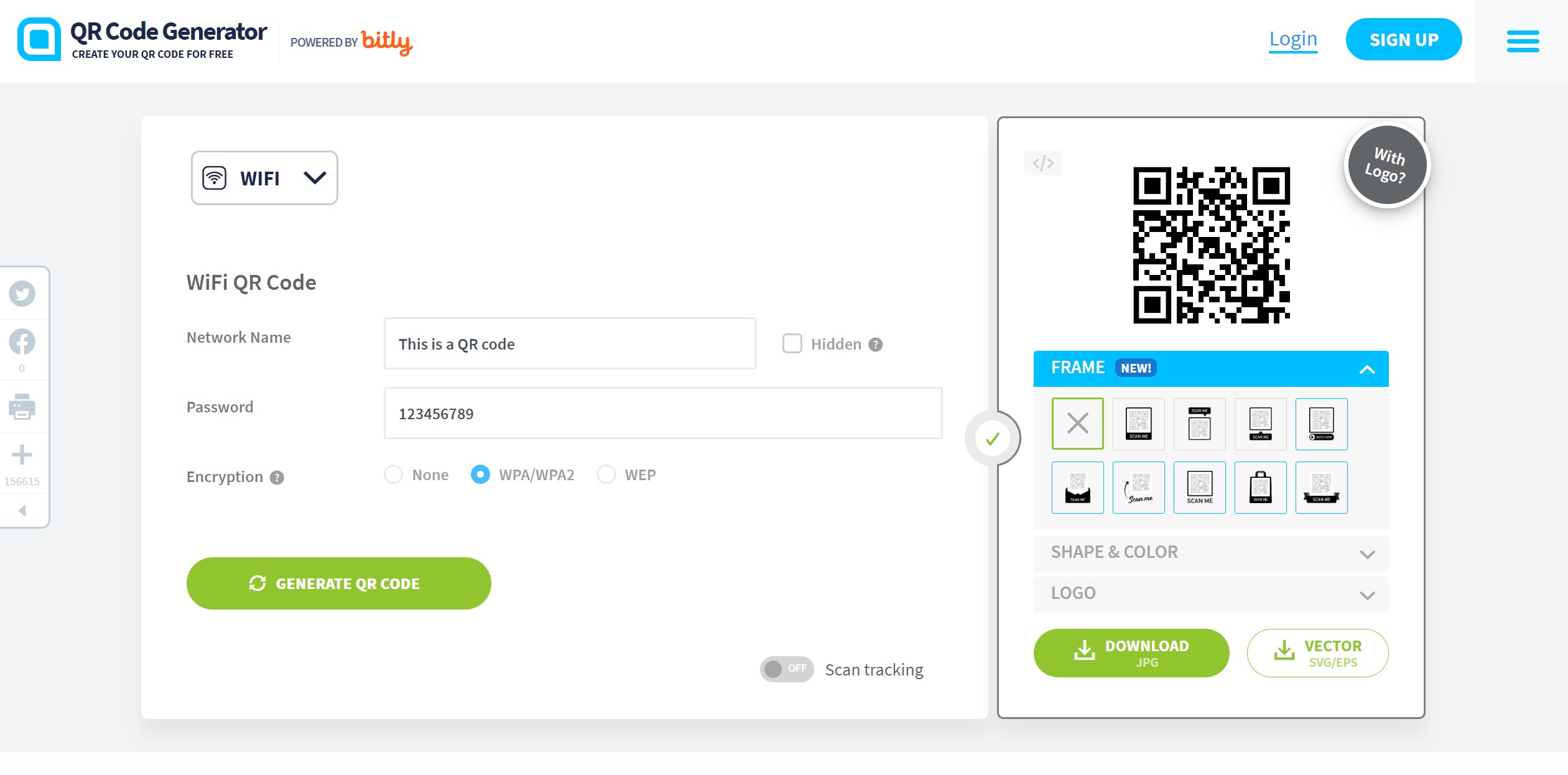
- On your iPhone, go to any WiFi QR Code Generator website. QR Code Generator is recommended for this purpose
- Now, add the name of your SSID and fill in the password
- Hit ‘Generate QR Code’ and download the image
- Keep this image or share it with non-Apple users
- All they have to do is scan the QR code through Google Lens and in no time their device will be connected to your WiFi
questions to ask
1. Why can’t I share my Wi-Fi password on iPhone?
There could be many reasons why you are not able to share WiFi password from iPhone. First, make sure that both the host and receiving devices are up to date with the latest software. Next, check whether your internet is working properly or not. If not, turn off your router and turn it back on to see if that solves the problem.
2. How to share WiFi Password in Laptop/PC?
Currently, there is no convenient way to share WiFi password from Android or iPhone to Windows Laptop/PC. Users must manually enter a password to connect to the network.


