

If you’re selling your AirPods or having trouble connecting them to your device, resetting them can help. The latter will keep the AirPods settings at default and make them as good as new. That said, a mere reset will not remove the AirPods from your Apple ID. If you’re giving the earphones away, you’ll also need to unlink them from your ID. If you’re wondering how, fret not, we’ve got you covered. Below is a detailed guide on how to factory reset your AirPods, AirPods 2, AirPods 3, AirPods Pro, and AirPods Max, as well as how to remove AirPods from Apple ID and more.
How to factory reset AirPods or AirPods Pro
If you’re experiencing connectivity or audio issues on your AirPods or AirdPods Pro, a quick factory reset is the way to go. Here’s how you can do it in minutes.
- First, make sure the AirPods are in their charging case
- then open the case cover
- Now go to ‘Settings’ app on your iPhone and tap on ‘Bluetooth’
- Select the circled ‘i’ under ‘My Devices’

- On the next screen tap on ‘Forget this device’
- tap again to confirm
- On your AirPods, press and hold the setup button on the back of the case until the LED light flashes amber then white


Also, note that the steps mentioned above must be followed while the lid of the charging case is opened, if not, only your iPhone will forget and unpair the AirPods. The process is the same for both the previous and latest generations of AirPods, the AirPods 2, AirPods 3, and the AirPods Pro.
How to reset AirPods Max
Resetting the AirPods Max is the same as resetting the AirPods or AirPods Pro. The steps are as follows.
- Before resetting your AirPods Max, make sure they have battery juice. If not, charge them for a few minutes using the UBC-C to Lightning cable
- Now press and hold both the Digital Crown and the Noise Control button simultaneously for 12 seconds
- The LED light at the bottom of the earcup should flash amber then white
- release the button to complete the process
- Now you can pair them with your device
Factory resetting the AirPods Max will also remove them from your iCloud account.
How to remove AirPods from Apple ID
Factory resetting AirPods cannot unlink them from Apple ID. This can cause connectivity issues when pairing them with other iOS devices with different Apple IDs. In that case, here’s what you need to do.
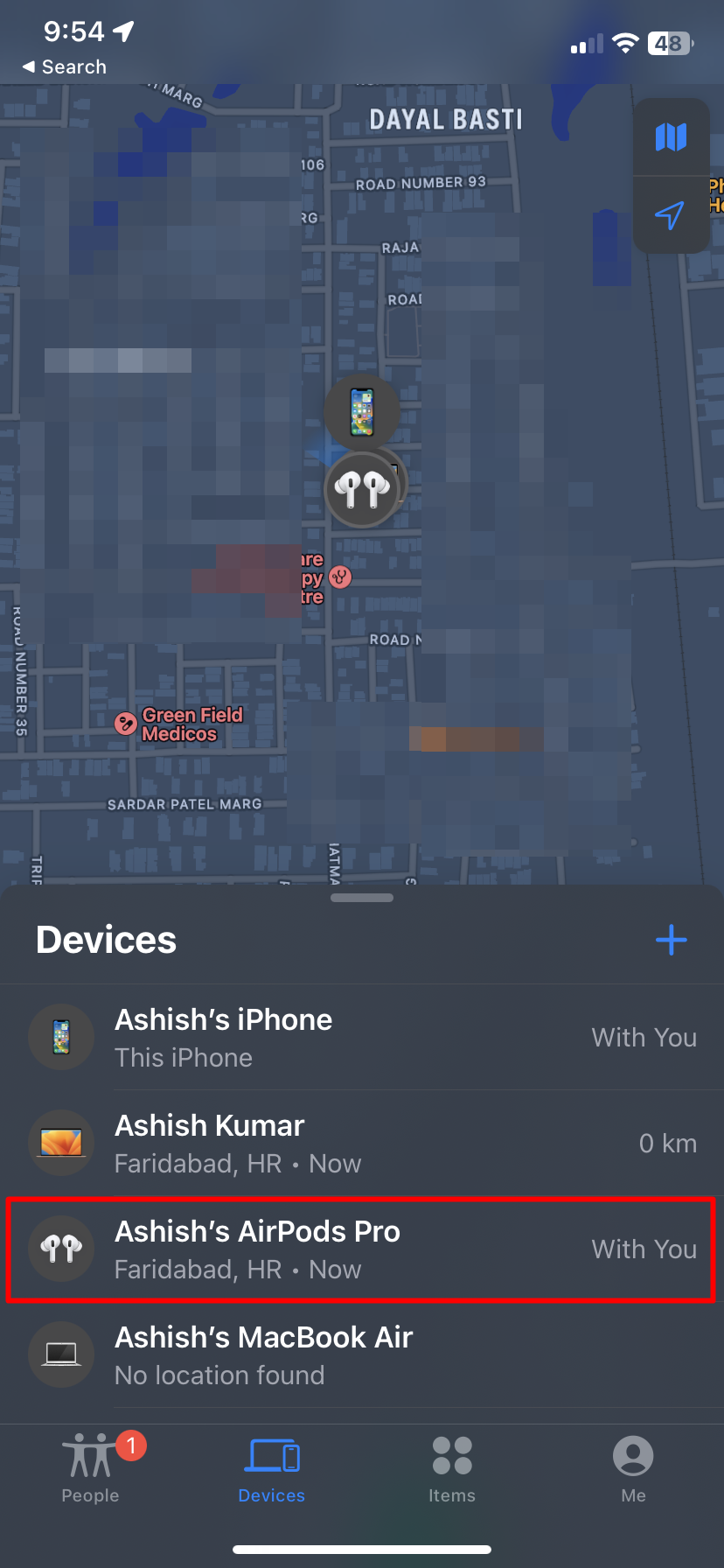
- First, open the ‘Find My’ app on your iPhone and make sure the AirPods are connected to your iPhone via Bluetooth
- Go to the ‘Devices’ tab
- Select the AirPods you want to unlink from your Apple ID
- On the next screen select ‘Erase this device’
- Tap ‘Delete’ and you’re done

questions to ask
1) How to reset second hand AirPods?
Second-hand AirPods or AirPods Pro can be placed by removing them from the Bluetooth settings and holding down the setup button on the charging case. However, if they are linked to an Apple ID, the previous owner will need to unlink them via the Find My app on the iPhone or iPad.
2) Why can’t I factory reset my AirPods?
There are many reasons why you are unable to factory reset your AirPods. Some of them include:
- low battery – Make sure that both the buds and the case have some degree of charge. Performing a factory reset may affect the battery.
- Not holding the button properly Both the AirPods and the AirPods Max require you to press and hold the button on the charging case and the earcups. Make sure necessary buttons are being pressed for factory reset
3) What to do when AirPods won’t reset?
Here are the steps you can take when your AirPods won’t reset:
- full charge If you’re having trouble resetting your AirPods, AirPods Pro, or AirPods Max, make sure they’re fully charged before going through the reset process.
- Contact Apple Customer Care – Apple customer service is your last resort if you are still unable to reset your AirPods after several attempts. Contact them either through call or directly by visiting the nearest Apple service center.
4) Can factory reset AirPods be tracked?
No, factory reset AirPods cannot be tracked unless they are within 10 meters of a linked Apple device such as an iPhone, iPad, or MacBook.
5) How do I remove the previous owner from the AirPods?
To remove the previous owner’s Apple ID from the AirPods, ask them to unlink the AirPods from the Find My app on their iOS device. Failing to do so, the AirPods may not connect seamlessly with your devices.


